


AirPin PRO - AirPlay & DLNA
4.033.00 Reviews
App Specs
- Version
- 5.6.1
- Updated On
- License
- $4.99
- Downloads
- 10,000+
- Developer
- WaxRain Tech.
- Categories
- Video Players & Editors
- Platform
- Android
Screenshots


 Analysis by AppCompare
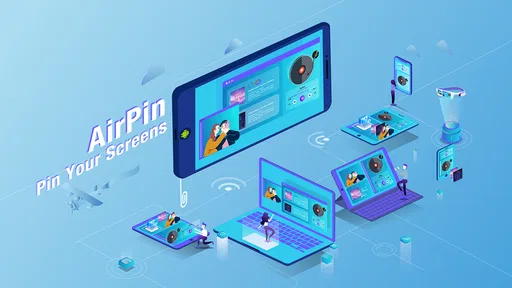
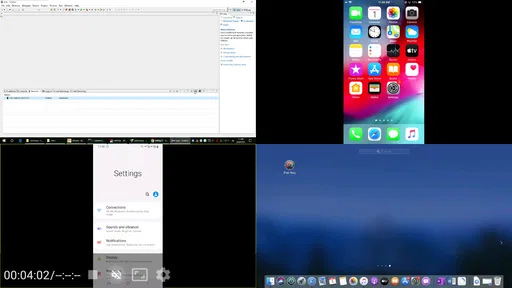
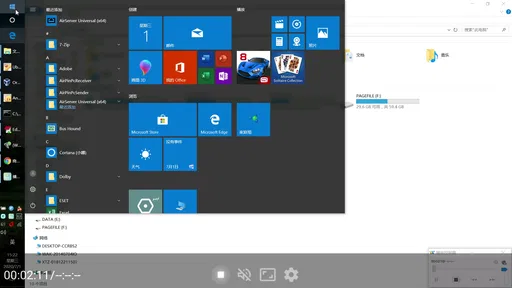
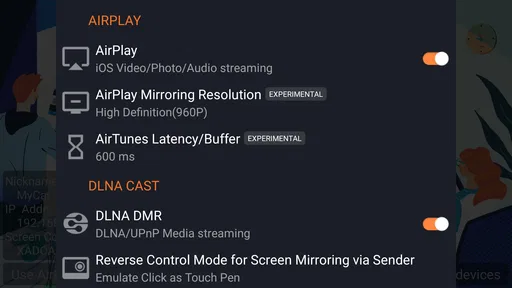
I approached AirPin PRO as a practical living-room tool rather than another video app. Its purpose is to receive or play media through AirPlay and DLNA, mirror compatible devices, and open content from network storage such as Samba, NAS, or DMS sources. That focus makes it quite different from a conventional mobile video player. You are not mainly installing it to edit clips or browse a large built-in catalog; you are installing it to make an Android device act as a bridge between your home network, mobile devices, and a larger screen.
In my experience, that distinction matters more than the name of the category. AirPin PRO sits in video players and editors, but its real value appears when several devices need to communicate. A phone can become the controller, a network drive can become the library, and a television or Android-based device can become the viewing point. When that chain works, it is convenient and surprisingly flexible. When the network or source device does not cooperate, the experience becomes more technical than the typical streaming app.
How AirPin PRO earns trust in a networked setup
The developer is WaxRain Tech., and the app has been available since April 18, 2020. Its current version is 5.6.1, while support reaches back to Android 2.3. That broad compatibility is useful for older hardware, especially an inexpensive Android box or spare phone that you want to repurpose as a receiver. It also means the app is aimed at a wide range of devices rather than only the newest televisions and phones.
The public reception is respectable rather than overwhelming: AirPin PRO holds a 4.0 average from around 241 ratings, with roughly 33 written reviews and over 10 thousand installs. I would read that as a sign of a focused utility with a real user base, not as proof that it will work perfectly in every home. Network playback depends on the sender, receiver, router, file format, and local configuration, so a rating alone cannot settle compatibility questions.
The price is $4.99, which changes how I judge it. A paid receiver should save time or replace a more complicated combination of apps. In return, I expect clear controls and dependable behavior for the tasks it claims to handle. The Everyone age rating also makes it suitable for a general household audience, although the technical nature of network sharing still means that adults should understand which devices and folders they are exposing inside the home.
Trust here is less about a flashy interface and more about knowing what is happening. AirPin PRO can sit between several devices, so I prefer to use it deliberately: I identify the receiver, choose the intended source, and avoid leaving network-sharing options active when I am finished. That is not a criticism unique to this app. It is simply the right mindset for any tool that connects phones, televisions, and storage on the same network.
What the app actually does in daily use
The most useful part of the package is its combination of receiving and playback. AirPlay and DLNA mirroring or streaming cover different ecosystems, so having both in one receiver can be more practical than keeping separate solutions for different phones. It can also handle up to four connections, which opens the door to a shared household situation where more than one device needs to interact with the receiver.
Worth Reading Before You Choose

EA SPORTS FC Mobile 26 Is a Bigger Football Game, but It Takes Time

Flipboard Shows What News Apps Must Do Beyond the Feed

Switching to Android Auto Means Rethinking Your Driving Routine

Google Calendar Makes a Crowded Week Easier to Manage

Ludo King Makes the Most of the Minutes Between Plans

Baby Panda World Brings Quick Play to Modern Phones, but Its Game Library Feels Busy
I would not interpret that four-connection capability as a promise that four people can comfortably stream demanding video at the same time. The result still depends on network capacity and the devices involved. In practice, I see it as useful for switching between controllers, sharing content during a small gathering, or keeping multiple compatible sources available without repeatedly rebuilding the connection.
The Samba, NAS, and DMS playback side is more interesting than it may first appear. Instead of copying every video to a phone, I can keep media on network storage and use the receiver to browse or play it. That is a better workflow for a household collection, particularly when the storage device already serves several computers or media devices. It also reduces the need to maintain duplicate files across phones.
There is a trade-off: a local network library is only convenient when its organization is good. If folders have unclear names or files use formats that a receiving device handles poorly, browsing becomes slower than opening a familiar streaming service. I recommend arranging folders by purpose before relying on AirPin PRO for regular use. Clear names and a simple structure matter more here than they do in a casual phone gallery.
A realistic evening workflow
Imagine I have saved a family video on network storage and want to show it on the television. I would first make sure the phone, storage device, and AirPin PRO receiver are on the same home network. I would then open the app on the receiving Android device, select the relevant network source, and use the phone only as a controller if that is the most comfortable option. Once playback begins, the phone can return to ordinary use instead of holding the only copy of the video.
That workflow is a genuine strength because it separates the media location from the screen. It is also where the app can feel more dependable than improvised screen-sharing methods. If a family member later wants to show a different item, the receiver can remain in place while the source changes. The connection model is more deliberate than simply mirroring an entire phone screen.
For a presentation, I would use mirroring differently. Mirroring is useful when an app does not provide a direct cast option, but it can expose notifications, orientation changes, and everything else visible on the phone. Before starting, I would enable a quiet mode, close private apps, and check the screen orientation. This is one of the most important practical precautions: mirroring gives convenience, but it also gives the receiver a view of whatever appears on the source display.
Controls that deserve careful attention
The app’s value depends on visible choices rather than unattended automation. I want to know which source is connected, whether I am streaming a selected file or mirroring a whole display, and whether the receiver is currently available to other devices on the home network. Those distinctions affect privacy and performance. A selected-file stream is usually easier to control than full-screen mirroring, especially when the phone contains personal messages or notifications.
I also recommend treating connection approval as a real decision instead of tapping through it automatically. If several devices are visible, choose the one you recognize and disconnect old sessions when they are no longer needed. The ability to work with multiple connections is helpful, but it makes device identification more important. A receiver in a shared home can be easy to confuse with another Android box or television if names are left generic.
Network storage introduces another layer of user responsibility. Samba, NAS, and DMS access can make a large library available, but the folders should be shared intentionally. I would avoid exposing an entire personal storage volume when only one media folder is needed. A dedicated media share is easier to understand, easier to revoke, and less likely to reveal unrelated documents to another device on the same network.
These are not hidden promises about the app’s security; they are sensible operating habits for a network player. AirPin PRO is most comfortable for someone willing to look at the connection screen and make choices. If you want a service that hides all network details behind one account and one catalog, a mainstream streaming platform will feel simpler.
Where data-sensitive moments appear
AirPlay and DLNA are designed around device discovery and communication on a local network. That means the sensitive moment is not only playback itself. It begins when the receiver becomes discoverable and continues while a phone, storage device, or media server communicates with it. I would therefore use the app on a trusted home network rather than an open public hotspot.
Public Wi-Fi is a poor environment for this kind of setup because device discovery can become confusing and network isolation may prevent connections from working. Even when the app behaves correctly, public networks are not the place where I would make a receiver visible or browse personal storage. A private home network with a sensible password is the more appropriate setting.
Mirroring deserves extra care because it can transmit the entire visible screen rather than only one chosen video. Incoming messages, account prompts, photo thumbnails, and passwords can appear unexpectedly. Before mirroring, I check the source screen and temporarily silence notifications. When I only need to play a known file, I prefer direct streaming or network playback because it limits what is displayed.
Network storage also changes the privacy calculation. A NAS or DMS library may contain much more than films and music, and a broad share can make those other files visible to compatible devices. I would create a media-only folder and test it with a non-sensitive file before adding a larger collection. That small preparation step makes the app easier to manage and reduces accidental exposure.
What it feels like beside the usual alternatives
Compared with a platform-specific receiver, AirPin PRO is appealing when a household mixes Android, Apple, and DLNA-capable equipment. A single app that understands several common approaches can reduce the need to switch between separate receivers. That flexibility is the main reason I would consider paying for it.
Compared with a modern television’s built-in casting, the advantage is less certain. Built-in support may be smoother for a narrow combination of phone and television, with fewer settings to inspect. AirPin PRO becomes more valuable when the television or Android box lacks the right receiver, when older hardware needs a flexible role, or when NAS and DMS playback are central to the setup.
Compared with a dedicated media-center application, AirPin PRO is more focused on receiving and connecting than on building a rich library interface. If I wanted posters, watch history, elaborate metadata, and a polished multi-user catalog, I would look elsewhere. If I wanted to bridge a phone and a networked screen without committing to one media ecosystem, this app would make more sense.
There is also a practical difference from ordinary screen-recording or video-editing apps. AirPin PRO is not the tool I would choose to cut clips, add effects, or produce a finished video. Its place in the video category comes from playback, streaming, and mirroring. Understanding that prevents disappointment and makes the purchase decision clearer.
Who should use it, and who should skip it
I think it suits people with a mixed-device home, an Android receiver, and media stored on a NAS, Samba share, or DMS server. It is especially useful when the goal is to reuse existing hardware instead of buying a new streaming box. Families may appreciate the ability to move between compatible sources, while technically comfortable users will value the direct access to network media.
I would also recommend it to someone who regularly moves between AirPlay and DLNA devices. Keeping one receiver available can be less frustrating than remembering which protocol each screen supports. The broad Android compatibility may help when the receiving hardware is older, although newer devices are still likely to provide a more comfortable overall experience.
I would skip it if all my viewing comes from subscription services with excellent native television apps. In that situation, AirPin PRO adds a layer that I may never use. I would also hesitate if I dislike troubleshooting routers, device discovery, shared folders, or file compatibility. The $4.99 purchase is modest, but the real cost can be time spent arranging a networked media workflow that I do not need.
It is not the best choice for someone seeking a private, single-purpose presentation setup without any chance of showing phone notifications. Direct casting of a selected file is safer for that purpose than mirroring. Nor would I choose it as a replacement for a full media server interface when browsing and organizing a large collection is more important than receiving content from multiple protocols.
Small habits that make the experience better
I would begin with one receiver, one phone, and one ordinary test video. That makes it easier to identify whether a problem comes from the app, the network, the file, or the sending device. Once that basic path works, I would add the NAS or DMS source. Testing everything at once makes troubleshooting unnecessarily difficult.
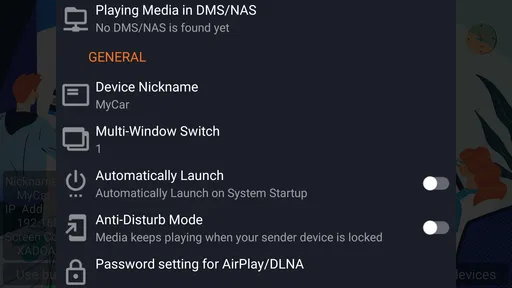
I would give the receiver a clear device name and keep the media share equally clear. This is a simple improvement, but it matters when several televisions, phones, or Android boxes are nearby. A recognizable name reduces the chance of sending a private video to the wrong screen or opening the wrong network source.
For long viewing sessions, I would use direct network playback when possible instead of mirroring. It keeps the phone from becoming the visual source for every frame and avoids exposing unrelated activity on the display. Mirroring remains valuable for apps without direct streaming support, but I treat it as a special mode rather than my default.
I would also keep a fallback plan for files that do not play as expected. Network access and video decoding are separate issues; a file can be visible in a share and still fail to play smoothly on the receiver. In that case, converting the file or using a device with broader codec support may be more sensible than repeatedly reconnecting. AirPin PRO can connect the pieces, but it cannot remove every limitation of the source file or receiving hardware.
My cautious verdict
AirPin PRO is a focused utility with a clear reason to exist. Its combination of AirPlay, DLNA, mirroring, multi-device connections, and Samba, NAS, or DMS playback gives it more practical range than a basic casting receiver. I like it most as a bridge for a mixed home setup, especially when network storage is already part of the household and an older Android device can serve as the receiver.
My recommendation comes with a condition: you should be comfortable making deliberate choices about devices, sources, mirroring, and shared folders. The app rewards that attention, while people who want a completely invisible setup may find built-in television casting or a mainstream streaming service easier. Its Everyone rating makes it broadly approachable, but the networking concepts are still more advanced than the age label suggests.
At $4.99, I see reasonable value for the right user rather than universal value for everyone. The 4.0 average and modest install base suggest a specialized tool with a practical audience, not a must-have for every phone owner. I would choose it when I need one receiver to connect different ecosystems and reach media stored on my own network. I would pass when my viewing habits already work smoothly through native apps.
After using it with that distinction in mind, my final view is positive but careful. AirPin PRO is strongest when flexibility and local media access matter more than a polished, invisible streaming experience. Set up the network thoughtfully, prefer selected-file playback for sensitive situations, keep shares narrow, and use mirroring only when you understand what the entire screen may reveal. With those habits, WaxRain Tech.’s app can turn otherwise disconnected devices into a useful home media chain without forcing you into one ecosystem.
Pros
- Streams photos
- music
- and videos from iPhone
- iPad
- and Mac devices.
- Supports DLNA
- AirPlay
- and Miracast for broad device compatibility.
- Can mirror screens from compatible Android and Windows devices.
- Works well for sharing local media on a TV without extra hardware.
- Offers playback controls and subtitles for a more convenient viewing experience.
Cons
- Some advanced features may require purchasing the full version.
- Performance depends heavily on Wi-Fi quality and network congestion.
- Screen mirroring can show noticeable delay during games or fast actions.
- Compatibility may vary between TV brands and older streaming devices.
- The interface feels dated compared with newer casting applications.
FAQs for AirPin PRO - AirPlay & DLNA
What is AirPin PRO - AirPlay & DLNA, and what can it do?
AirPin PRO is a receiver app that turns a compatible Android device, such as a TV box, smart TV, projector, or streaming stick, into a target for wireless media sharing. After installation, you can send photos, music, and videos from supported Apple or Android devices using AirPlay, DLNA, or related casting methods. Its usefulness depends on the sender app, network setup, and compatibility of the receiving hardware.
Which devices and platforms are compatible with AirPin PRO?
AirPin PRO is primarily designed for Android-based receiving devices, including Android TV boxes, televisions, projectors, and other hardware capable of installing Android applications. It can receive content from devices such as iPhones, iPads, Macs, Windows computers, and Android phones when they use compatible AirPlay or DLNA features. Compatibility may vary by device manufacturer, operating-system version, and the specific media application being used.
Does AirPin PRO support screen mirroring as well as photo, music, and video casting?
The app can support several types of wireless sharing, but the exact experience depends on the sender and receiver. Media casting, such as sending a local video, photo, or song, is generally more reliable than full screen mirroring. Some devices may mirror an iPhone, iPad, Mac, or Android screen, while others may only receive selected media. Protected streaming services can also block mirroring or display a blank screen.
How do I connect AirPin PRO to my phone, tablet, or computer?
Install and open AirPin PRO on the Android receiving device, then connect both the receiver and sender to the same local Wi-Fi network. On an iPhone or iPad, open Control Center and look for Screen Mirroring or the AirPlay icon; on Android, use a compatible Cast, DLNA, or sharing option. Select the AirPin receiver shown on the network and follow any pairing or access instructions displayed by the app.
What should I do if AirPin PRO cannot find my device or the connection keeps dropping?
First, confirm that both devices are connected to the same Wi-Fi network and are not separated by guest-network isolation, a VPN, or router security settings. Restart AirPin PRO, the sending device, and the router, then check whether the app has the required network permissions. Keeping the receiver near the router can improve stability. If video stutters, reduce network traffic, use a stronger Wi-Fi connection, and test with locally stored media.


